

Go: from zero to your own blog Lesson 16 of 50
Git: the history of your code and the way back
The sixteenth lesson of the Go course. Git keeps not the latest version of a file but every state you marked, and any of them can be brought back. git init, the three places — working folder, index and history — git status as the command you will type most, what to write in a message, what .gitignore is for, and how to fetch yesterday's file.
Why this matters
You edit a program that worked, it stops working, and there is no way back: the old text is gone. Everyone knows the feeling, and everyone goes through the stage of folders called main_old.go and main_working2.go.
Git settles this once and for all. It keeps not the latest version but every state you marked, and any of them can be brought back.
And a second reason, blunter than the first: without Git you will not be hired. Not because it is fashionable, but because all the code in the world lives in it, and a developer without Git can neither take someone’s work nor hand over their own.
Picture it. Not a single last page but a notebook full of bookmarks. Ordinary saving keeps only what you have written now. Git keeps every page you marked, and you open the one you need whenever you like.
The whole thing at once
Git is installed separately from Go: git-scm.com, an ordinary installer. Check it:
git --version
Name yourself once on this computer — your records are signed with it:
git config --global user.name "Your Name"
git config --global user.email "pochta@example.com"
Now take the folder of any lesson and run these in it, in order:
git init
git add .
git commit -m "First program"
Edit main.go — add one more line of output — and ask Git what changed:
git status
## main
 M main.go
M stands for modified. Look at what exactly changed:
git diff
--- a/main.go
+++ b/main.go
@@ -4,4 +4,5 @@ import "fmt"

 func main() {
 	fmt.Println("Hello, world!")
+	fmt.Println("This is my blog.")
 }
Record this state and look at the history:
git add main.go
git commit -m "Add a line about the blog"
git log --oneline
1a2b3c4 Add a line about the blog
1a2b3c4 First program
The hashes in the excerpts are a sample: in your repository they will be different.
On the left are the short names of the records. Yours will be different: they are computed from the content, and no two are alike.
Taking it apart
git init — a folder becomes a history
One command turns an ordinary folder into a repository: a hidden .git folder appears beside your files, and Git keeps every state in it. Delete .git and you are left with an ordinary folder holding the latest version, with the history gone.
A repository is created once per project. Not one per lesson folder but one for the whole course — that way you will see the work grow.
Three places: folder, index, history
This is what everyone trips over, so it is worth learning straight away.
- The working folder — the files you edit. Git sees them and does nothing to them.
- The index — what you have chosen for the next record.
git addputs things there. - The history — the recorded states.
git commitmoves things there.
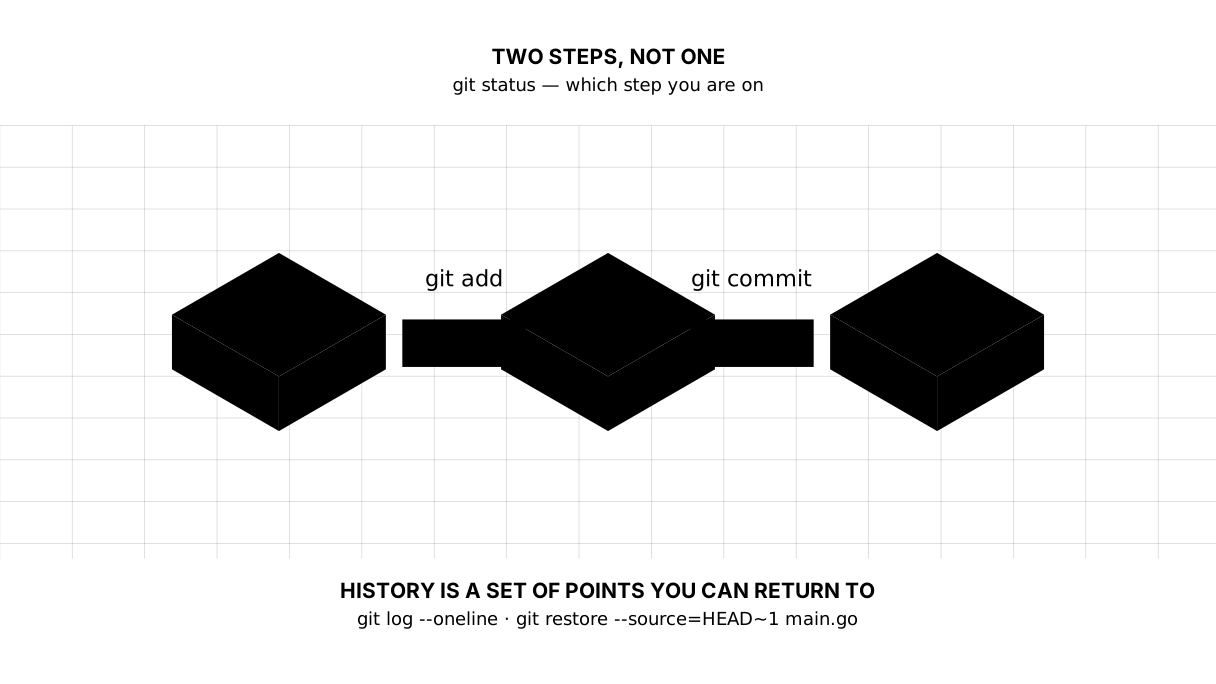
That is why there are two steps and not one: add chooses, commit records. You can edit five files and record three; the rest wait for the next record.
Picture it. The tray at the checkout. In a shop you walk between the shelves (the folder), put what you are taking on the tray (
add), and only at the till do you get a receipt (commit). The receipt lists what was on the tray, not everything you picked up.
git add . puts everything changed on the tray at once — that is what people do most of the time, but remember that “everything” means everything.
git status — the command you will type most
People type it dozens of times a day, and that is normal. It answers a single question: what is in which place right now.
Whenever you are not sure what is going on, type git status. It will suggest the next command as well.
What to write in the message
A message explains why, not what. “Changed main.go” is useless: that main.go changed is visible from the record itself. “Added reading time to the card” is useful.
Keep it short, one line. Six months from now you will read these lines to find the moment you want, and you will thank your present self.
.gitignore — what has no place in the history
A compiled program, temporary files, passwords — none of them belong in the history. Create a .gitignore file and list them:
blog
*.exe
.env
Git will stop noticing them. The rule is simple: only what you wrote by hand goes into the history. Anything go build can produce is produced by go build.
Passwords are a case of their own, with no exceptions. A password committed to the history stays there even after the file is deleted, and cleaning it out is hard.
Picture it. What does not go to the archive. Drafts, printouts and the coffee cup stay on the desk. Documents go to the archive.
Going back
This is what the whole thing was for:
git log --oneline
git restore --source=HEAD~1 main.go
HEAD is the current state, HEAD~1 the one before it. The command fetches the file as it was then and puts it in the folder. Nothing is lost: the latest record is still there, you have simply taken the neighbouring version of the file out of it.
There is the opposite case too: you have made a mess and want the file back as it was at the last record, forgetting your edits — git restore main.go. Carefully: anything unsaved will be gone.
One rule for the whole course
When you finish a lesson, make a record. One line in the terminal, three seconds.
In a month you will have a history of thirty steps showing how you learned. That is what you show an employer — not “I took a course” but forty records with sensible messages.
The lesson map
Say it in your own words
Without looking, answer out loud or on paper. The answers are at the end of the lesson.
- Why are there two steps,
addandcommit, rather than one? - What must not go into the history, and why?
- You have ruined a file and want yesterday’s version back. Which two commands help?
Exercise
Required. Create a repository for all your lessons: git init in the course’s shared folder, a .gitignore listing the compiled programs, and a first record holding everything written so far. Then edit any file, look at git status and git diff, make a second record, and check that git log --oneline shows both.
Optional.
- Fetch a file from the first record with
git restore --source=HEAD~1and confirm the content came back. - Add the line
*.logto.gitignore, create atest.logfile, and check thatgit statusdoes not notice it. - Run
git show HEADand read what Git keeps in a single record: who, when, and exactly what.
Where this goes in your blog
The course you are reading lives in Git: the lessons, the maps, and the blog step by step. Every edit is a record with a message, and any of them can be looked at.
In the next lesson the history moves to GitHub: the same thing, but visible to other people — an employer included.
Answers
Show the answers
- Because what should be recorded is not everything you touched but what is finished.
addchooses,commitrecords what was chosen. Having edited five files you can record three and leave the rest for next time. - Anything you did not write by hand: the compiled program, temporary files, and above all passwords and keys. Anything compiled can be produced again by
go build, while a password that reached the history stays there even after the file is deleted. git log --onelineto see the records and choose one, andgit restore --source=HEAD~1 main.goto fetch the file out of the previous record.
Sources
If you have found a mistake or a typo in this article, tell us about it
Comments (0)
Log in to leave a comment →
No comments yet. Be the first.