

Python: from data to your own digest Lesson 12 of 56
CSV: a comma inside a field, and the mark Excel leaves
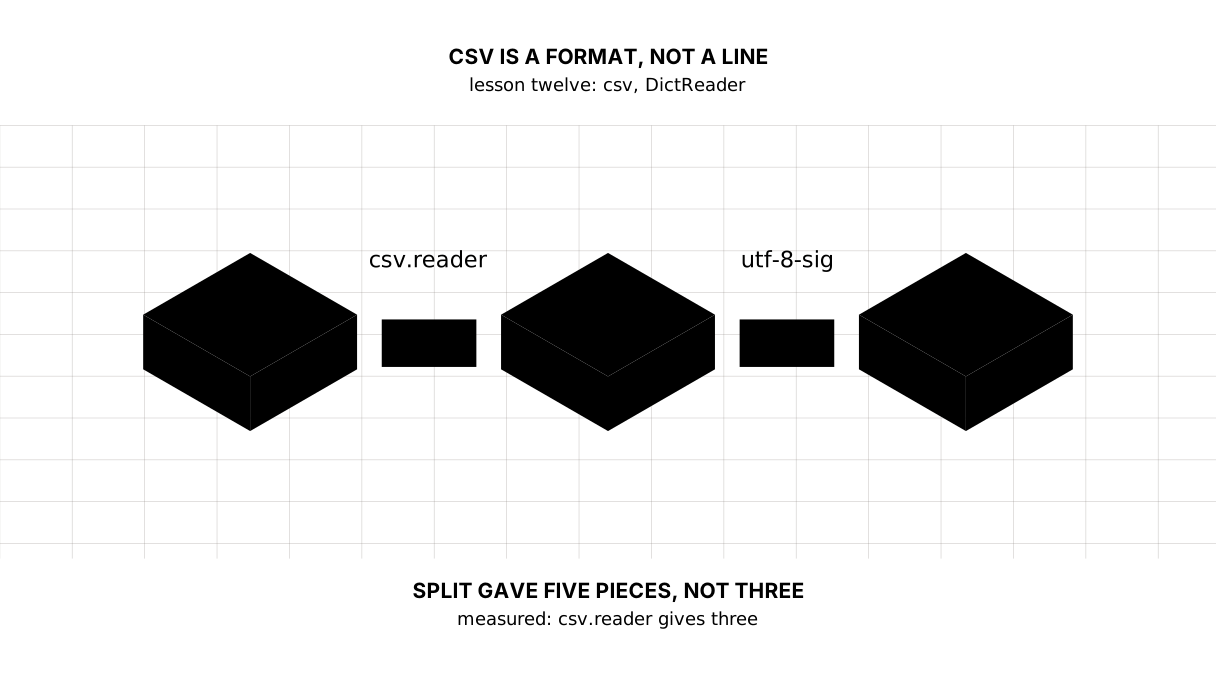
The twelfth lesson of the Python course. On the row `2022,15.0,"shock, war, logistics"`, `split(",")` returns five pieces instead of three — measured. The csv module returns three. Plus `DictReader`, the required `newline=""`, and Excel's mark, which makes `row["year"]` answer `KeyError` while the column is right there.
Why this is needed
In the previous lesson we split a row with partition(";"), and that worked while the data stayed simple. A real export never is.
A comma turns up inside a field: “shock, war, logistics”. Quotes appear, and inside the quotes another comma. Sometimes a cell holds a line break and one record takes two lines of the file.
All of it is legal CSV, and all of it breaks split. The csv module knows the format’s rules whole, which is why an export is read with it rather than by hand.
The whole thing at once
The file is csvdemo.py. Run it with python csvdemo.py from inside the environment.
The required part is writing with csv.writer and reading with csv.DictReader. The middle block is the proof: it shows what separates split from reading by the rules.
"""Lesson 12: CSV is not "a line with commas" but a format with its own rules.

A comma inside a field, quotes, a newline in a cell — all of it is legal.
So an export is read with the csv module rather than with split(",").
"""

import csv
from pathlib import Path

HERE = Path(__file__).parent
data = HERE / "vygruzka.csv"

rows = [
    ["year", "value", "note"],
    ["2021", "8.0", "an ordinary year"],
    ["2022", "15.0", "shock, war, logistics"],
    ["2023", "n/a", "no data"],
]

# newline="" is required: the csv module puts the line endings in itself.
with data.open("w", encoding="utf-8", newline="") as target:
    csv.writer(target).writerows(rows)

print("== what is in the file")
print(data.read_text(encoding="utf-8"), end="")

print()
print("== split against csv.reader on the third line")
line = data.read_text(encoding="utf-8").splitlines()[2]
print("split(','): ", line.split(","))
with data.open(encoding="utf-8", newline="") as source:
    print("csv.reader: ", list(csv.reader(source))[2])

print()
print("== DictReader: a row as a dictionary")
total = 0.0
count = 0
with data.open(encoding="utf-8", newline="") as source:
    for row in csv.DictReader(source):
        if row["value"] == "n/a":
            print(f"{row['year']}: skipped — {row['note']}")
            continue
        total += float(row["value"])
        count += 1
        print(f"{row['year']}: {row['value']}% — {row['note']}")
print(f"rows taken: {count}, average {total / count:.2f}%")

data.unlink()
It prints:
== what is in the file
year,value,note
2021,8.0,an ordinary year
2022,15.0,"shock, war, logistics"
2023,n/a,no data

== split against csv.reader on the third line
split(','):  ['2022', '15.0', '"shock', ' war', ' logistics"']
csv.reader:  ['2022', '15.0', 'shock, war, logistics']

== DictReader: a row as a dictionary
2021: 8.0% — an ordinary year
2022: 15.0% — shock, war, logistics
2023: skipped — no data
rows taken: 2, average 11.50%
Taking it apart
The proof in one line
split(','):  ['2022', '15.0', '"shock', ' war', ' logistics"']
csv.reader:  ['2022', '15.0', 'shock, war, logistics']
Five pieces instead of three, broken quotes at the edges, spaces at the front. Further down the program those travel on as “the value” and “the note”, and no type check will save you: they really are strings.
csv.reader knows the rule: a comma inside quotes is part of the value rather than a separator. It also strips the quotes themselves, because they belong to the format and not to the data.
Picture it. The address “Almaty, Abai Street, 10” on a form. A person sees one address; a program cutting on commas sees three fields. The quotes in CSV are the bracket the form does not have.
The writer adds the quotes, not you
Look at the file: csv.writer put the third row in quotes by itself and left the others alone. The rule is simple: quotes appear where the file could not be read unambiguously without them — where a value holds a separator, a quote or a line break.
Hence a practical conclusion: do not build CSV by gluing strings. ",".join(values) produces a file that breaks on the first value with a comma in it — and it breaks not for you but for whoever opens it.
newline="" is not decoration
with data.open("w", encoding="utf-8", newline="") as target:
The csv module decides how a line ends and expects the file not to interfere. Without newline="" Python adds a line ending of its own on top — on Windows blank rows appear between records, and the file opened in Excel reads every other line.
The rule is remembered whole: a file for csv is opened with newline="" — for writing and for reading alike. It stands as the first note in the module’s documentation.
DictReader: a column by name, not by number
for row in csv.DictReader(source):
    ... row["value"] ...
csv.reader hands back a list: row[1] is the second field. Let the source insert a column in the middle and the whole parse shifts without a word.
DictReader takes the first row as a header and hands back a dictionary: row["value"] finds the column wherever it stands. For other people’s exports that is the right default: they change without warning.
Beside it lives csv.DictWriter, which writes dictionaries back and asks for fieldnames in advance — that is, for an agreement about the order of the columns.
The separator is not always a comma
In Kazakhstan and Russia an export from Excel usually arrives with semicolons: in a locale where the decimal separator is a comma, 1,5 would otherwise fall into two cells. The module knows about it:
csv.reader(source, delimiter=";")
csv.DictReader(source, delimiter=";")
There is also csv.Sniffer, which tries to guess the separator from the start of a file. It guesses well enough, and it gets a small or odd file wrong — and a silent mistake in parsing is worse than a loud one. Looking at the file once and writing the separator down is sturdier.
Excel’s mark, which loses the first column
Excel saves CSV with an invisible mark at the start of the file:
first bytes: b'\xef\xbb\xbfyea'
Those three bytes are the BOM, the byte order mark. Read such a file as plain utf-8 and it sticks to the name of the first column:
keys as utf-8:      ['year', 'value']
row['year'] → KeyError 'year'
The column is there, everything looks right, and the program cannot find it. The cure is one letter in the encoding’s name:
keys as utf-8-sig: ['year', 'value'] | row['year'] = 2021
utf-8-sig is the same UTF-8, but it eats the mark at the start. That is what files from Excel are read with; when writing, plain utf-8 is kept so that we do not add a mark ourselves.
The map of the lesson
Say it in your own words
Without looking, answer out loud or on paper. The answers are at the end of the lesson.
- Why did
split(",")cut the row into five pieces instead of three? - What makes
DictReaderbetter thanreaderwhen the file came from somebody else? - What is a BOM, and why does it make
row["year"]raiseKeyError?
Warm-up
Three short steps before the exercise: predict, fill in, fix. The answers are at the end of the lesson, but answer them yourself first.
1. Predict. How many pieces come out?
line = '2022,15.0,"a shock, a war, logistics"'
print(len(line.split(",")))
2. Fill in the gap. The file was saved by Excel. In place of ... put the encoding under which the first column’s name does not arrive with a mark on it.
import csv
from pathlib import Path

HERE = Path(__file__).parent
data = HERE / "excel.csv"
data.write_bytes("year,value\n2021,8.0\n".encode("utf-8-sig"))
with data.open(encoding=..., newline="") as source:
    for row in csv.DictReader(source):
        print(row["year"])
data.unlink()
3. Fix it. The row was written by gluing, and on reading there are more fields than were written. Build it the way it is supposed to be built.
import csv
from pathlib import Path

HERE = Path(__file__).parent
data = HERE / "vygruzka.csv"
row = ["2022", "15.0", "a shock, a war, logistics"]

data.write_text(",".join(row) + "\n", encoding="utf-8")
with data.open(encoding="utf-8", newline="") as source:
    for back in csv.reader(source):
        print("fields:", len(back))
data.unlink()
Exercise
Required. Given:
rows = [
    ["month", "price", "note"],
    ["January", "520", "an ordinary month"],
    ["February", "546,5", "a shock, demand, logistics"],
    ["March", "n/a", "no price"],
]
Write it into vygruzka.csv through csv.writer with newline="". Print how many pieces split(",") gives on the file’s third line and how many fields csv.reader sees. Then walk the file with DictReader: print the month with n/a as skipped along with its note, the others with their price and note, and at the end print how many months were taken and the average to two decimal places (a comma inside a number counts as a point). Take the file away after you.
The expected output:
split(','): 6 pieces
csv.reader: 3 fields
January: 520 — an ordinary month
February: 546,5 — a shock, demand, logistics
March: skipped — no price
months taken: 2, average 533.25
Done when: the output matches line by line; the file is built by csv.writer rather than by gluing strings; the columns are taken by name rather than by number; newline="" is there on the write and on the read.
On your own data. Build a file from your own data with csv.writer, making sure one field holds a comma. Read it two ways — split(",") and csv.reader — and print both results side by side. Then walk the file with DictReader and work out the average of the numeric column, skipping n/a.
All of it is put together in step-5 — compare once you have written your own.
Optional.
- Write the file with
delimiter=";"and open it in Excel or LibreOffice. - Save a file with Cyrillic from Excel and read it first as
utf-8, then asutf-8-sig. - Drop
newline=""from the write and look at the file in an editor that shows invisible characters.
Where this goes in the project
The digest stops depending on who exported the data and how. The file is read by DictReader through the names of its columns, the separator is named outright, Excel’s mark does not break the first column, and a row holding n/a goes to the skipped ones rather than into the average.
Still open. We read the file in a loop but keep what we parsed in memory. For an export of hundreds of thousands of rows that is already too much — how to read those comes in the lesson on generators.
The answers
To the questions
- Because the field held a comma, and
splitknows nothing about quotes: it cuts at every separator character.csv.readerknows the format’s rule — a comma inside quotes belongs to the value. - It takes the first row as a header and hands back a dictionary, so a column is found by its name. If the source inserts a column in the middle, parsing by number breaks silently while parsing by name carries on.
- Three invisible bytes at the start of a file, which Excel writes as an encoding mark. Read as plain
utf-8they stick to the name of the first column, and it stops being found under its real name. Such files are read asutf-8-sig.
To the warm-up
- Five. There are two separating commas and two more inside the note, and
splitcuts on all four: it knows nothing about quotes. On that same linecsv.readergives three fields.
5
"utf-8-sig". A plainutf-8leaves Excel’s mark glued to the first column’s name, androw["year"]answersKeyErrorwhile the column is right there.
import csv
from pathlib import Path

HERE = Path(__file__).parent
data = HERE / "excel.csv"
data.write_bytes("year,value\n2021,8.0\n".encode("utf-8-sig"))
with data.open(encoding="utf-8-sig", newline="") as source:
    for row in csv.DictReader(source):
        print(row["year"])
data.unlink()
2021
",".join(row)wrote the note’s commas as separators, and on reading there were five fields instead of three. The quotes are put in by the writer —csv.writer:
import csv
from pathlib import Path

HERE = Path(__file__).parent
data = HERE / "vygruzka.csv"
row = ["2022", "15.0", "a shock, a war, logistics"]

with data.open("w", encoding="utf-8", newline="") as target:
    csv.writer(target).writerow(row)
with data.open(encoding="utf-8", newline="") as source:
    for back in csv.reader(source):
        print("fields:", len(back))
data.unlink()
fields: 3
Sources
If you have found a mistake or a typo in this article, tell us about it
Comments (0)
Log in to leave a comment →
No comments yet. Be the first.